
Security requirement: Our email service requires TLS 1.2 or newer. Most current email apps support this automatically. If you are using an older computer or email program, you may need to update your software or adjust security settings to connect.
Choose your email app below and follow the steps to enter the correct settings.
Magnifi Email Information (KCI mail server)
Email server settings
Incoming mail server: mail.kci.net
Outgoing mail server (SMTP): mail.kci.net
Incoming mail
IMAP (recommended): Port 993, SSL
POP3: Port 995, SSL
Outgoing mail
SMTP: Port 587, TLS
Use the Email server settings listed above.
Step 1: Open Account Settings
- In Thunderbird, select Tools.
- Select Account Settings.
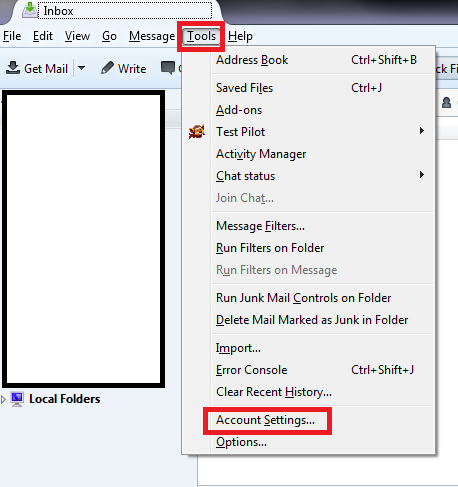
Step 2: Confirm incoming server settings
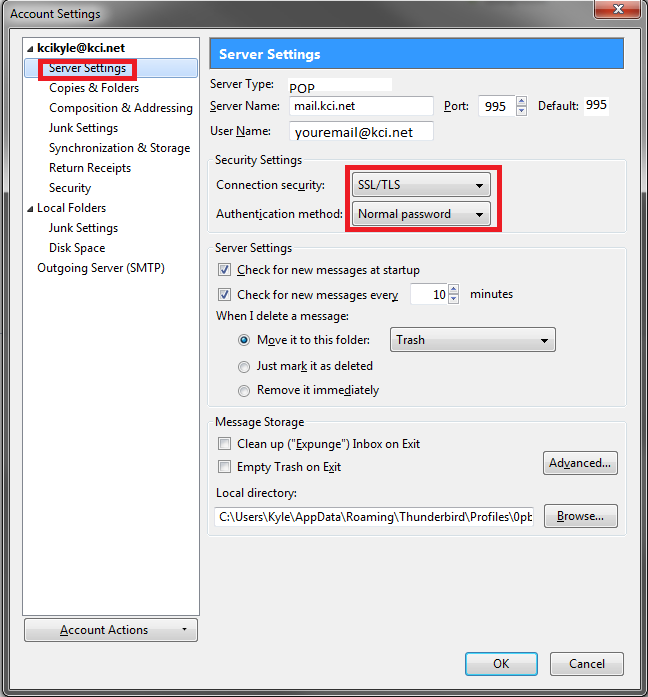
- In the left menu, select your account and click Server Settings.
- Confirm the following:
- Connection security: SSL/TLS
- Authentication method: Normal password
- Confirm the port matches your mailbox type:
- POP3: 995
- IMAP: 993
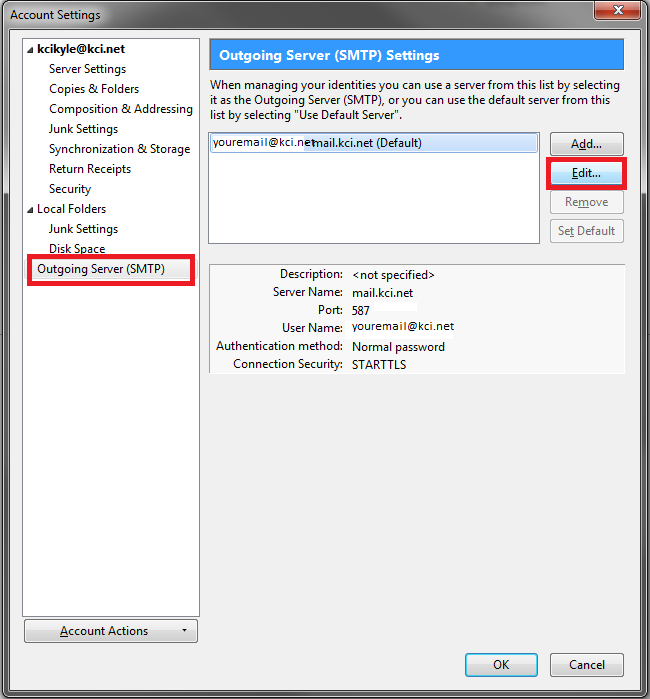
Step 3: Confirm outgoing server settings
- In the left menu, select Outgoing Server (SMTP) (near the bottom).
- Select your mail server from the list, then click Edit.
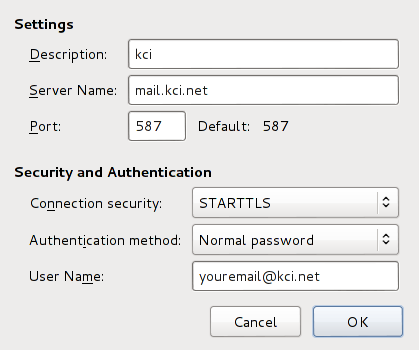
Step 4: Verify SMTP security and port
- Set Connection security to STARTTLS.
- Confirm the Port is set to 587.
Use the Email server settings listed above.
Step 1: Open Account Settings
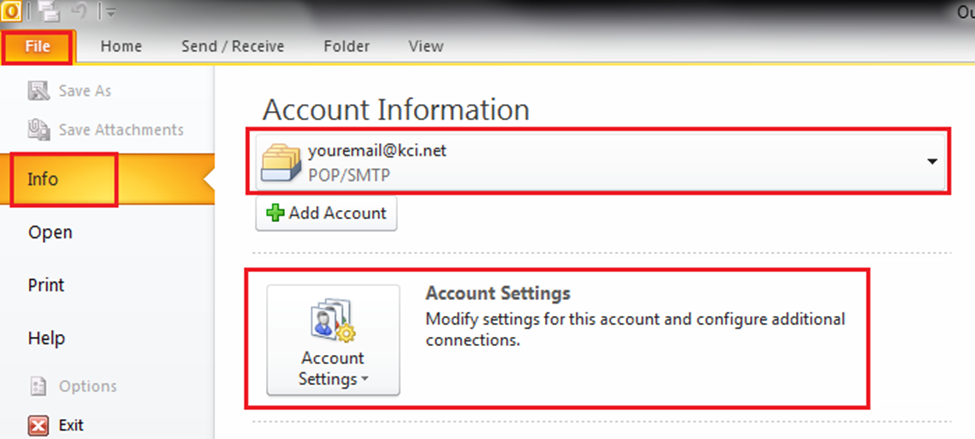
- In Outlook 2013, select File.
- Select Info.
- Under Account Information, confirm your email account is selected.
- Click Account Settings, then select Account Settings again.
Step 2: Select your account
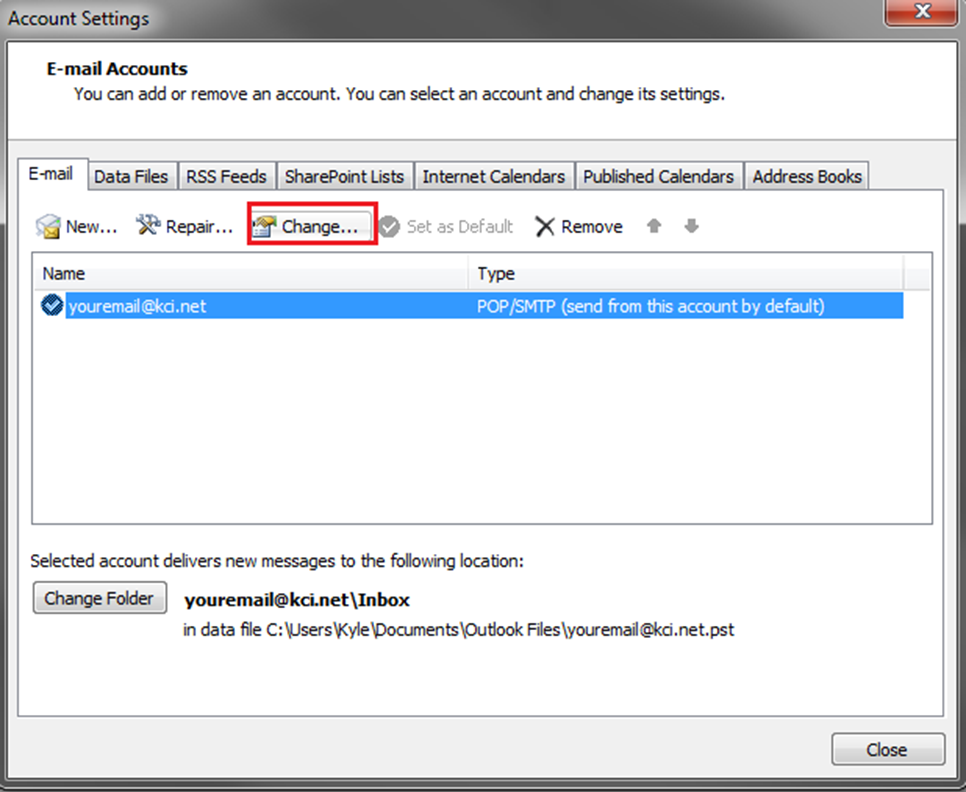
- On the E-mail tab, select your email account.
- Click Change…
Step 3: Open More Settings
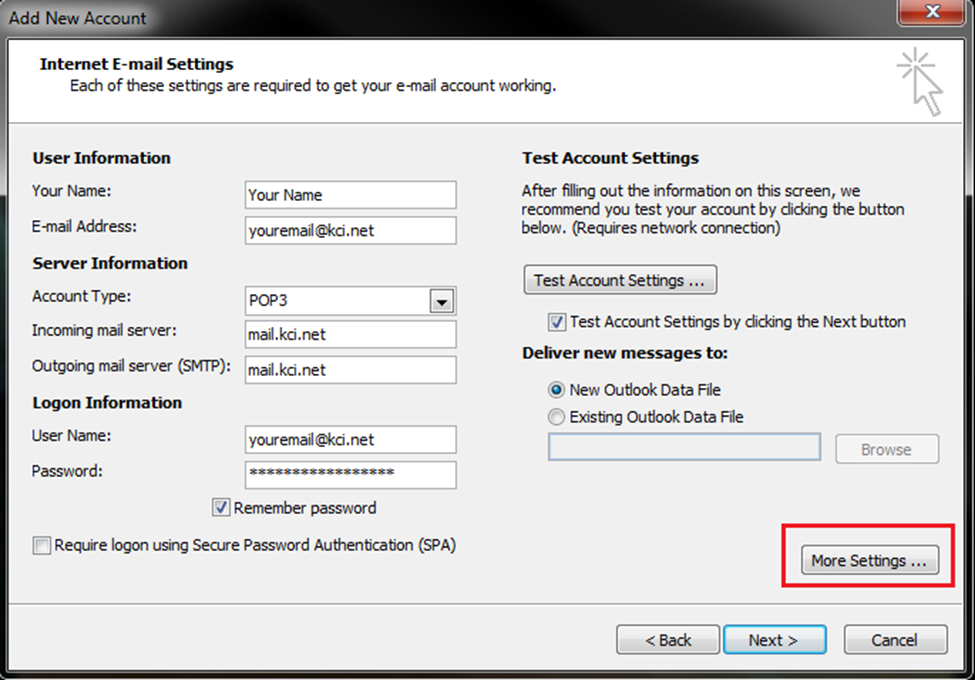
- Click More Settings…
Step 4: Update Outgoing Server settings
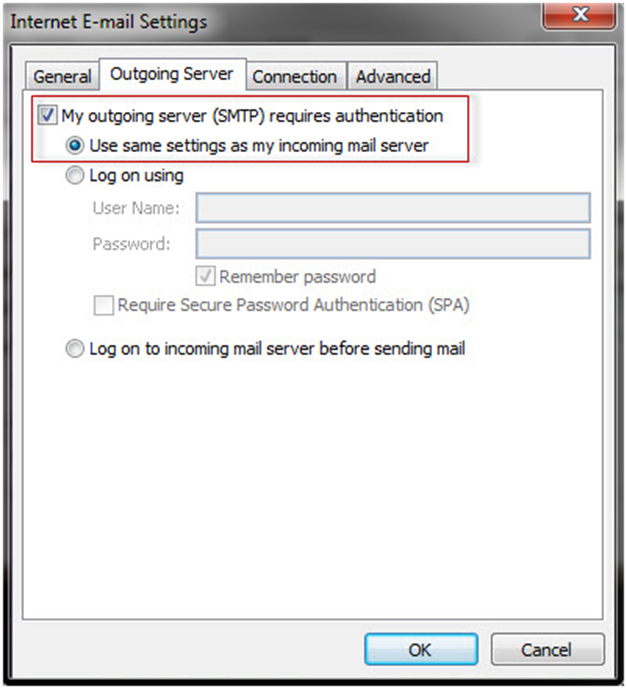
- Select the Outgoing Server tab.
- Check My outgoing server (SMTP) requires authentication.
- Select Use same settings as my incoming mail server.
Step 5: Update Advanced settings (ports and encryption)
- Select the Advanced tab.
- Under Incoming server, set the port based on your mailbox type:
- POP3: 995, and check This server requires an encrypted connection (SSL)
- IMAP: 993, and check This server requires an encrypted connection (SSL)
- Under Outgoing server (SMTP):
- Set the port to 587
- For Use the following type of encrypted connection, select TLS
Click OK, then Next, then Finish to save.
Use the Email server settings listed above.
Important note: Outlook Express is an older, discontinued email program. If possible, we recommend using a current email app for better security and compatibility. If you still need to use Outlook Express, the settings below should be used.
Step 1: Open Accounts
- In Outlook Express, select Tools.
- Select Accounts.
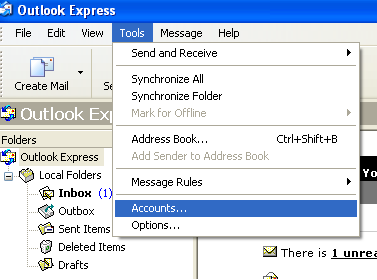
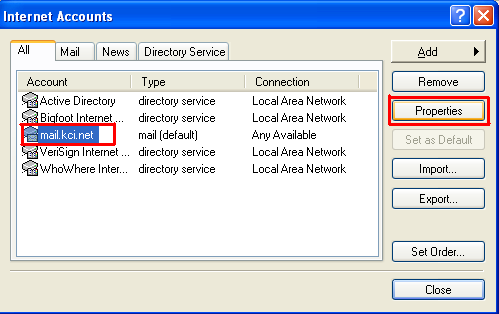
Step 2: Open account properties
- Select the All or Mail tab.
- Choose your email account.
- Click Properties.
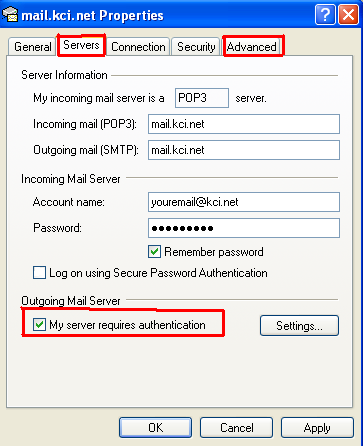
Step 3: Verify outgoing server authentication
- Select the Servers tab.
- Check My server requires authentication.
Step 4: Update ports and encryption
- Select the Advanced tab.
- Set the following:
Outgoing mail (SMTP):
- Port 587
- Enable This server requires a secure connection (SSL) if the client uses that checkbox for encrypted sending
- If Outlook Express does not support 587 with encryption properly, use Port 465 with SSL as a fallback.
Incoming mail:
- POP3: Port 995 and enable SSL
- IMAP: Port 993 and enable SSL
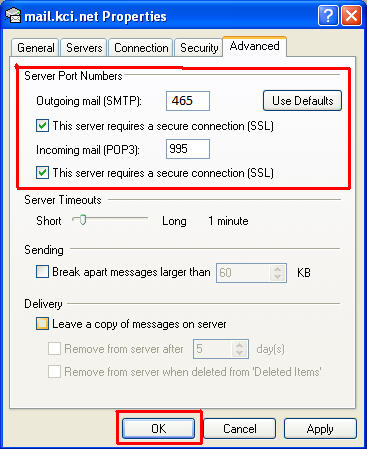
Click OK to save.
Use the Email server settings listed above.
Note: Windows Live Mail 2012 is an older email program and is no longer supported by Microsoft. If possible, we recommend using a current email app for improved security and compatibility. If you still need to use Windows Live Mail 2012, use the settings below.
Step 1: Open Email Accounts
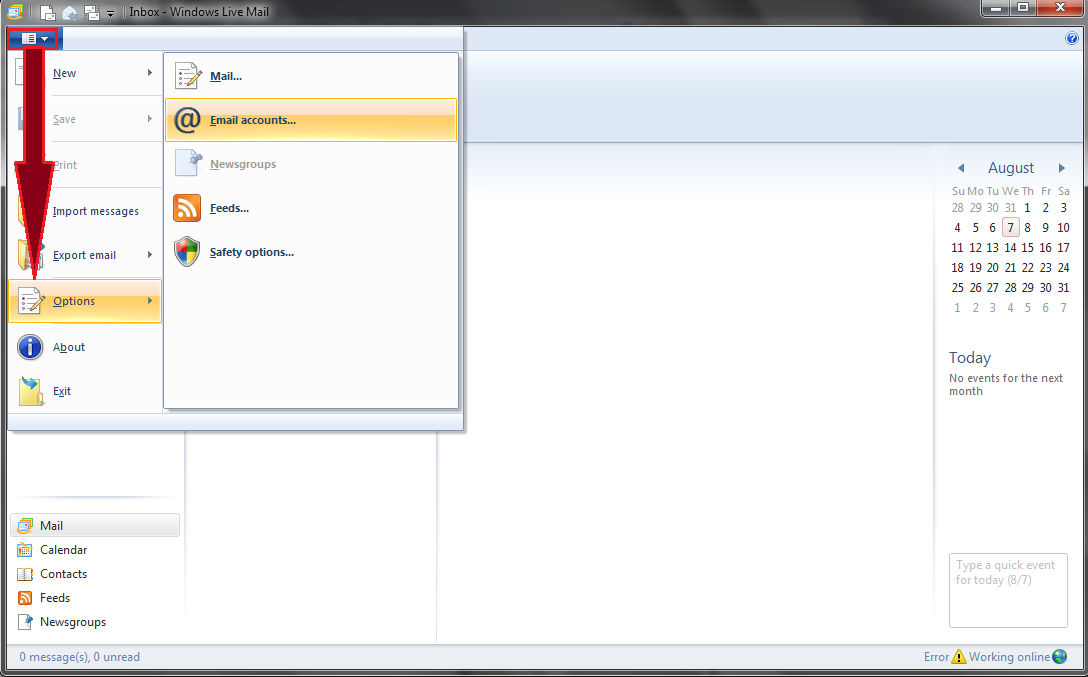
- Select the Menu button.
- Select Options, then Email accounts.
Step 2: Open account properties
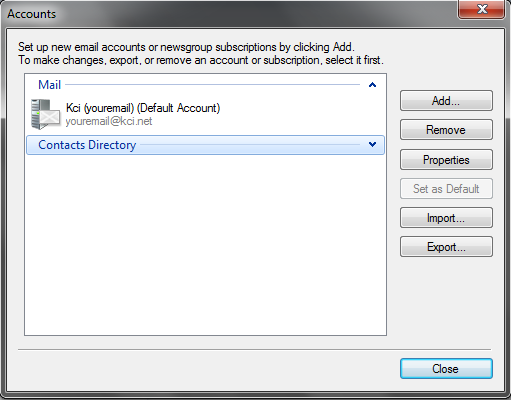
- Select your email account.
- Click Properties.
Step 3: Verify outgoing server authentication
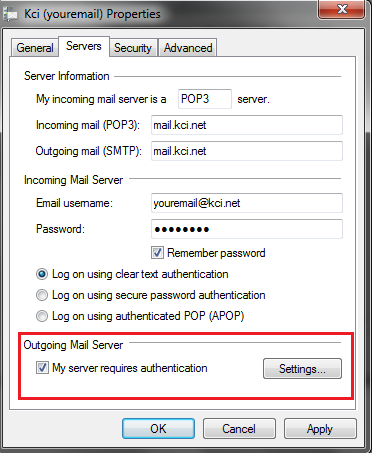
- Select the Servers tab.
- Check My server requires authentication.
Step 4: Update ports and encryption
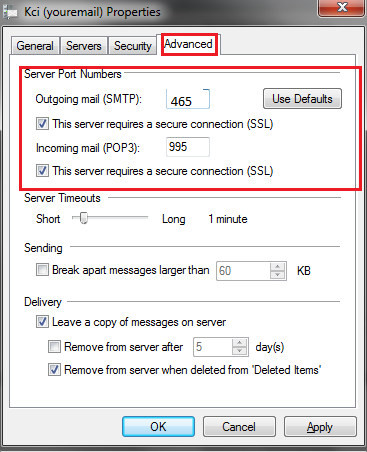
- Select the Advanced tab.
- Set the following:
Outgoing mail (SMTP):
- Port 587
- Enable This server requires a secure connection (SSL) if the client uses that checkbox for encrypted sending
- If Windows Live Mail 2012 does not support 587 properly, use Port 465 with SSL as a fallback.
Incoming mail:
- POP3: Port 995 and enable SSL
- IMAP: Port 993 and enable SSL
Click OK to save.
Use the Email server settings listed above.
Note: Apple Mail often configures email automatically. If you are prompted to enter settings manually, or if you are having trouble sending or receiving email, use the settings below. Older versions of macOS may display different menu names or may not support modern security requirements. If Apple Mail will not connect, updating macOS or using a newer email app may be required.
Add your email account in Apple Mail
- Open Mail.
- Select Mail in the top menu, then Settings (or Preferences on older macOS versions).
- Select Accounts, then click the + button to add a new account.
- If asked to choose an account type, select Other Mail Account.
- Enter your name, email address, and password. If Apple Mail requests server settings, enter the values listed above.
If email is not sending or receiving
In Mail > Settings/Preferences > Accounts, select your email account and confirm:
- Incoming server is mail.kci.net
- IMAP uses 993 with SSL/TLS, or POP uses 995 with SSL/TLS
- Outgoing server (SMTP) is mail.kci.net
- SMTP uses 587 with TLS/STARTTLS
- Authentication is set to Password
- Username is your full email address


